
Quick answer
Key takeaways
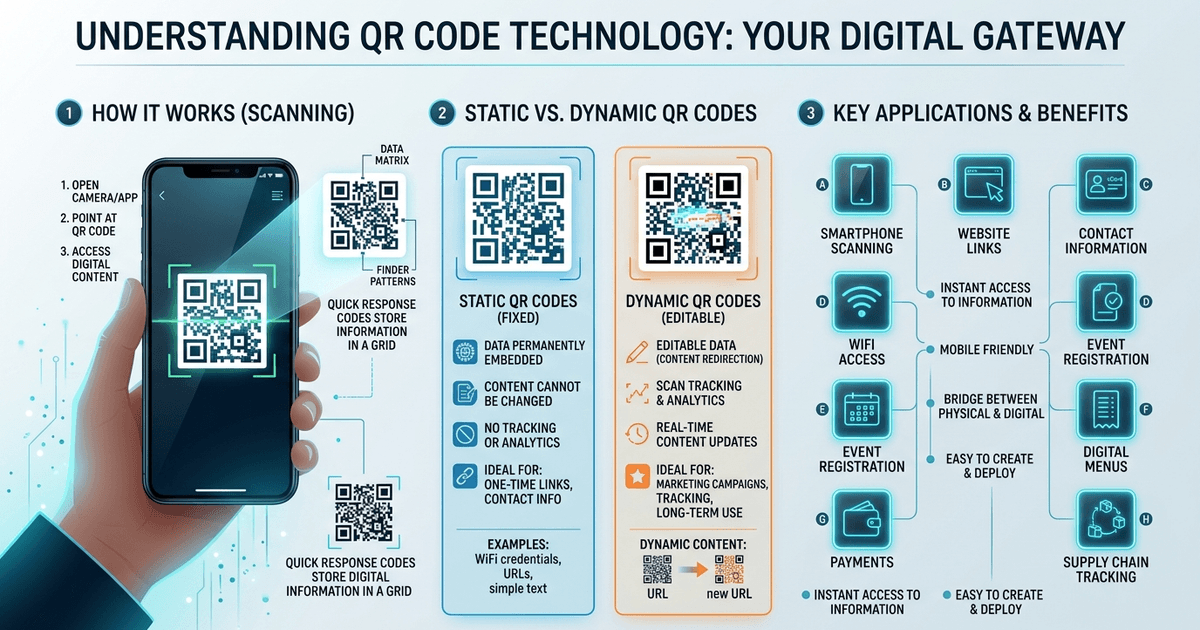
- QR codes consist of finder patterns, alignment patterns and data modules.
- Reed‑Solomon error‑correction lets a QR remain readable even when partially damaged.
- Scanning apps locate the three corner markers to determine orientation and then decode the binary data.
Finder patterns and position detection
Every QR code contains three large square markers in the top‑left, top‑right and bottom‑left corners. These *finder patterns* are easily recognizable by a scanner and allow it to quickly locate the code in the camera view, regardless of rotation or perspective. A smaller *alignment pattern* in the centre helps with distortion correction for larger QR versions.
Data modules and encoding
The remaining squares, called *modules*, store binary data. The data is first converted to a bit stream using the chosen encoding mode (numeric, alphanumeric, byte, or Kanji). Then the bits are placed into the QR matrix following a zig‑zag pattern defined by the QR specification.
Solve it now
Use the free QR Code Maker tool
The guide explains the problem. The tool helps you prepare the actual file online.
Create your QR code nowError‑correction (Reed‑Solomon)
QR codes embed redundancy using Reed‑Solomon error‑correction. Depending on the selected level (L, M, Q, H) a certain percentage of the modules can be restored even if they are obscured, dirty, or covered by a logo. This is why QR codes can tolerate a centered logo without losing scannability - the error‑correction compensates for the missing bits.
How a scanner decodes the code
1. **Detect** - the camera feed is analysed for the three finder patterns. 2. **Perspective transform** - using the corner markers the image is warped to a square grid. 3. **Binarize** - convert to black/white modules. 4. **Read format information** - determines error‑correction level and mask pattern. 5. **Unmask** - reverse the masking that was applied to avoid large areas of the same colour. 6. **Extract data blocks** - read the bits in the prescribed order. 7. **Error‑correct** - apply Reed‑Solomon to fix any errors. 8. **Interpret** - convert bits to the original payload (URL, text, Wi‑Fi settings, etc.).
Practical implications for our QR Code Maker
Because our tool generates the QR client‑side, the error‑correction level is set to **high (H)** by default, ensuring that adding a small logo or printing at modest resolutions still yields a readable code. The generator also applies an optimal mask to maximise contrast, which improves scanning reliability on mobile devices.
Practical checklist before you finish
Before you download or upload the final file, check the details that usually create rejection or rework: readability, file format, file size, spelling, page order and the exact instruction written on the form or portal.
For this task, use QR Code Maker as a preparation step, not as a replacement for the official requirement. If a school, office, employer, bank or government portal gives a size, format or document rule, follow that rule first and then use the tool to prepare the file.
- Open the downloaded file once and confirm it is not blank, cropped wrongly or unreadable.
- Use a clear file name so you can identify it later during upload or printing.
- Keep the original file until your submission, printout or sharing task is complete.
- Do not add private pages or unnecessary details when only selected information is required.
The most useful parts of this guide are Finder patterns and position detection, Data modules and encoding, Error‑correction (Reed‑Solomon). Read those sections carefully if you are preparing a file for an online form, local photocopy counter, office record or student document work.
Frequently Asked Questions People Search For
Read next
Related blog posts
These guides support the same document, photo, PDF or online-form workflow, so readers can solve the next step without returning to search.
How to Calculate Days Between Dates Online for Forms and Deadlines
Learn how to calculate days between dates, add days, subtract days and count working days for forms, exams, deadlines and office work.
Utility ToolsHow to Calculate GST Online for Bills and Invoices
Learn how to calculate GST online for bills and invoices. Add GST, remove GST, split CGST/SGST or IGST and understand taxable value.
Utility ToolsHow to Calculate Loan EMI Online for Home, Car and Personal Loan
Learn how to calculate loan EMI online for home loan, car loan, personal loan, education loan and business loan with interest and repayment schedule.
Utility ToolsHow to Calculate Percentage Online for Marks, Discount, GST and Profit
Learn how to calculate percentage online for student marks, discount, GST-style amount, reverse percentage, profit/loss, price change and daily shop work.
Written by
Shrikant Yadav
Website Developer, Photocopywala
Shrikant Yadav writes practical Photocopywala guides for photo tools, PDF tools, document preparation, printable resources, government-link safety and online form help for Indian students, job seekers, shop owners and everyday users.
Solve it now
Use the free QR Code Maker tool
The guide explains the problem. The tool helps you prepare the actual file online.
Create your QR code now