
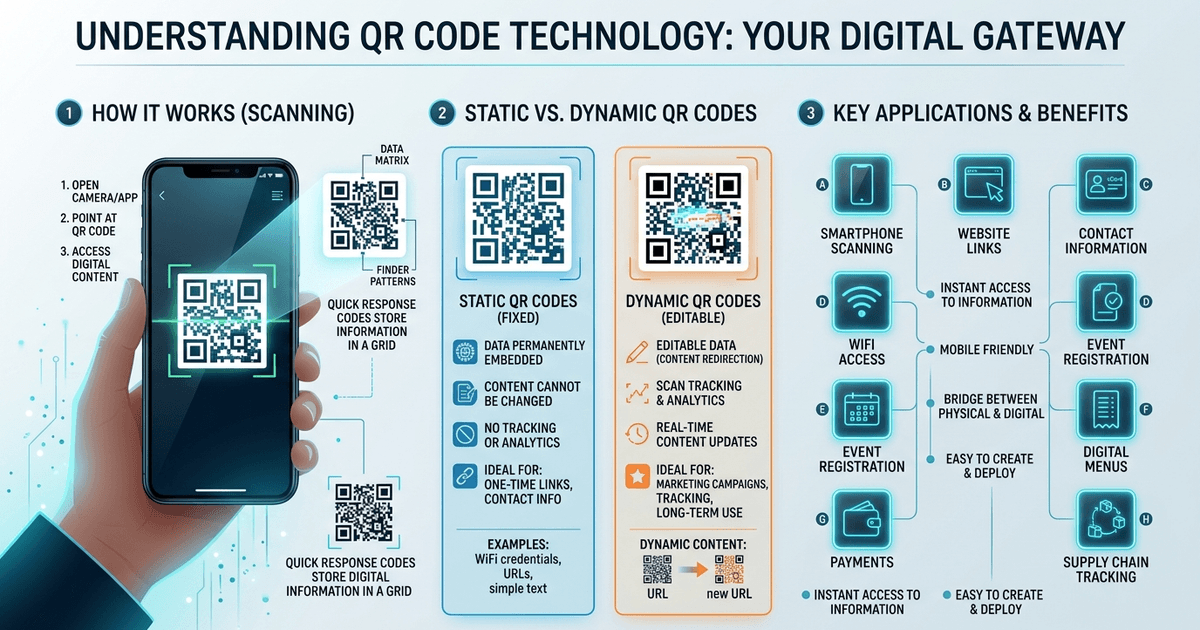
Quick answer
Key takeaways
- Choose the QR content type (URL, Wi‑Fi, contact, etc.).
- Enter the required details and optionally add a logo or colors.
- Download the QR in PNG, JPG, WEBP or SVG and test it before using.
Step‑by‑step process
- Select the content type you need - URL, Wi‑Fi, text, vCard, etc.
- Enter the exact data (link, password, contact details, etc.).
- Customize the QR colour, shape and optionally upload a logo.
- Click Generate and preview the QR code.
- Download the image in the format you need (PNG, JPG, WEBP, SVG).
- Scan‑test with a phone camera before printing or sharing.
Tips for best results
- Keep the logo small and centred to retain scan reliability.
- Use high contrast between QR modules and background.
- Print the QR large enough for the intended scanning distance.
Solve it now
Use the free QR Code Maker tool
The guide explains the problem. The tool helps you prepare the actual file online.
Create your QR code nowPractical checklist before you finish
Before you download or upload the final file, check the details that usually create rejection or rework: readability, file format, file size, spelling, page order and the exact instruction written on the form or portal.
For this task, use QR Code Maker as a preparation step, not as a replacement for the official requirement. If a school, office, employer, bank or government portal gives a size, format or document rule, follow that rule first and then use the tool to prepare the file.
- Open the downloaded file once and confirm it is not blank, cropped wrongly or unreadable.
- Use a clear file name so you can identify it later during upload or printing.
- Keep the original file until your submission, printout or sharing task is complete.
- Do not add private pages or unnecessary details when only selected information is required.
The most useful parts of this guide are Step‑by‑step process, Tips for best results. Read those sections carefully if you are preparing a file for an online form, local photocopy counter, office record or student document work.
Frequently Asked Questions People Search For
Read next
Related blog posts
These guides support the same document, photo, PDF or online-form workflow, so readers can solve the next step without returning to search.
How to Calculate Days Between Dates Online for Forms and Deadlines
Learn how to calculate days between dates, add days, subtract days and count working days for forms, exams, deadlines and office work.
Utility ToolsHow to Calculate GST Online for Bills and Invoices
Learn how to calculate GST online for bills and invoices. Add GST, remove GST, split CGST/SGST or IGST and understand taxable value.
Utility ToolsHow to Calculate Loan EMI Online for Home, Car and Personal Loan
Learn how to calculate loan EMI online for home loan, car loan, personal loan, education loan and business loan with interest and repayment schedule.
Utility ToolsHow to Calculate Percentage Online for Marks, Discount, GST and Profit
Learn how to calculate percentage online for student marks, discount, GST-style amount, reverse percentage, profit/loss, price change and daily shop work.
Written by
Shrikant Yadav
Website Developer, Photocopywala
Shrikant Yadav writes practical Photocopywala guides for photo tools, PDF tools, document preparation, printable resources, government-link safety and online form help for Indian students, job seekers, shop owners and everyday users.
Solve it now
Use the free QR Code Maker tool
The guide explains the problem. The tool helps you prepare the actual file online.
Create your QR code now