
Open Signature Pixel Resizer
Upload your signature, crop extra margins, enter exact pixel width and height, then download JPG/JPEG.
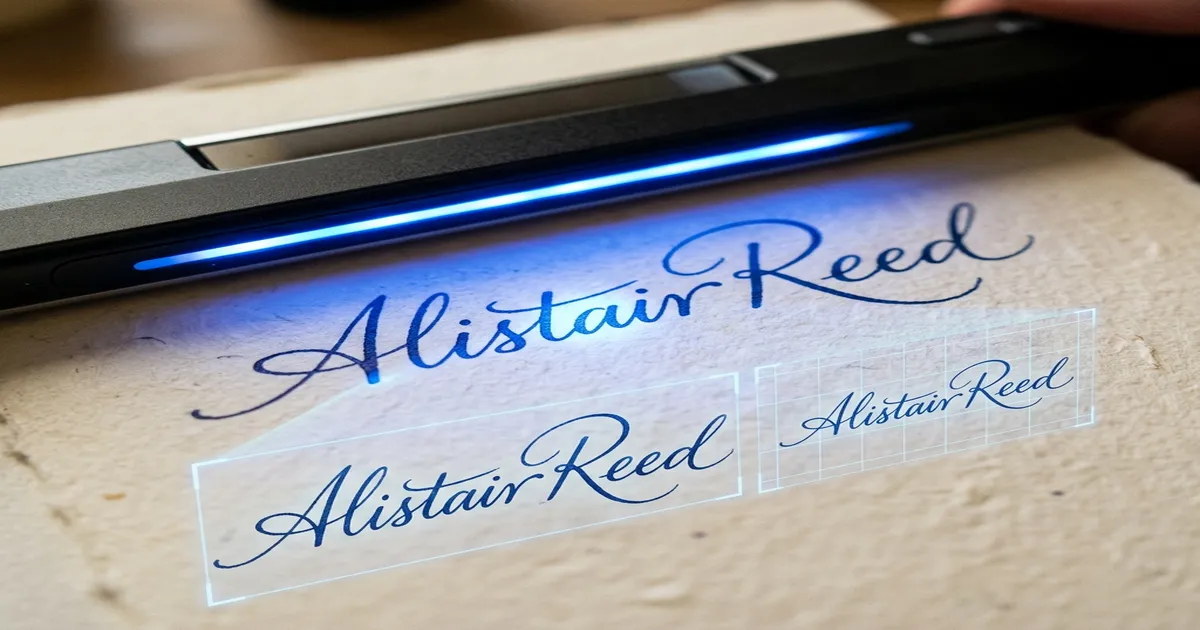
How-to Guide
How to resize signature width and height in px
Copy the exact pixel size from your form first, then enter width and height carefully.
Step 1 - Copy the pixel rule
Write down the exact width and height shown by the portal, for example 140x60 px or 400x200 px.
Step 2 - Upload signature image
Start with a clear signature scan or phone photo on white paper.
Step 3 - Crop before resizing
Remove blank margins so the final signature is not tiny inside the required pixel box.
Step 4 - Enter width and height
Set width first, height second. Do not reverse 140x60 into 60x140 for a normal horizontal signature.
Step 5 - Export and verify
Download JPG/JPEG and check dimensions, KB size and clarity before final upload.
Resize signature by exact pixel width and height
Use this page when your portal shows signature dimensions in px. It explains width-first entry, common signature pixel sizes and how to avoid reversed or stretched signatures.
When this page helps
Use it when your form gives an exact pixel size, such as 140x60 px, 400x200 px or 350x350 px.
Exact Pixel Size
Useful when your form gives a required width and height in pixels.
Common pixel examples
Explains 140x60 px, 400x200 px, 350x350 px and reversed-width mistakes.
Safer form upload
Helps users check pixels, KB, JPG format and readability before upload.
Privacy and upload note
- Your image is processed in your browser when supported. We do not ask for OTP or government login details.
- Always check the official portal requirement for dimensions, KB size, background and file format before final upload.
- This tool helps prepare the file, but final acceptance depends on the portal or department rules.
Check the final file once before uploading to the portal.
Pixel resize workflow
- 1
Write down the exact width and height shown by the portal, for example 140x60 px or 400x200 px.
- 2
Start with a clear signature scan or phone photo on white paper.
- 3
Remove blank margins so the final signature is not tiny inside the required pixel box.
- 4
Set width first, height second. Do not reverse 140x60 into 60x140 for a normal horizontal signature.
- 5
Download JPG/JPEG and check dimensions, KB size and clarity before final upload.
Signature Width and Height in PX FAQs
Clear answers for file preparation, printing, uploads and common document requirements.
What does signature width and height in px mean?
PX means pixels, the digital width and height of the image. For example, 140x60 px means the signature image is 140 pixels wide and 60 pixels tall. Online forms commonly validate pixel dimensions along with KB size and format.
How do I resize signature width and height in pixels?
Upload your signature image, crop extra blank space, enter the exact width and height in pixels, choose the required KB target if shown by your form, export as JPG/JPEG, and check the final file before upload.
Is 140x60 px the same as 60px 140px?
No. 140x60 px means width 140 and height 60. If someone writes 60px 140px, it may be reversed. For a normal signature, width is usually larger than height, so check the form wording carefully before entering values.
Which page should I use for 10KB to 20KB?
Use the Signature Resize 10KB to 20KB page when the main requirement is file size. Use this pixel page when the main requirement is width and height in pixels, such as 140x60 px, 400x200 px or 350x350 px.
Can I resize signature to JPG format after setting pixels?
Yes. After setting the pixel width and height, choose JPG/JPEG output if the portal asks for it. Many Indian exam, banking and government forms prefer JPG/JPEG signature upload.
Does this page promise upload approval?
No. It helps you prepare the pixel dimensions, but the portal may also check file size, format, background and clarity. Always follow the current form instruction.
Pixel signature resize tips
Before setting pixels
- Width is usually the first number and height is usually the second number.
- Do not stretch the signature to force exact pixels; crop first and then resize proportionally when possible.
- If the portal asks for both pixels and KB, both must match.
- Use the cm page when your form mentions 4cm x 2cm, 5cm x 2cm or 6cm x 2cm.
- Use the 10KB to 20KB page when file size is the main rejection problem.
Important
If the portal asks for both pixels and KB, a correct pixel size alone is not enough. Check final KB and format too.
Signature resize in pixels: simple meaning
Pixel size is the actual digital size of the signature image. When a portal asks for width and height in px, it may reject images that are even slightly different from the requested dimensions. Copy the width and height carefully, crop the extra space first, then check the final pixels and KB size before upload.
Common signature pixel sizes
Common mistakes
Too much compression
Very small KB targets can make faces, signatures or document text unclear.
Wrong dimensions
Many portals reject files when the KB is correct but pixel size or aspect ratio is wrong.
Skipping the final check
Open the final file once before upload so you catch blurry output or the wrong format.
Using portal-unapproved backgrounds
Some forms need white or plain backgrounds, even if the photo size is correct.
Related signature resize pages
Signature Resize Online
Use this for normal signature resizing by KB, cm, px and JPG format.
Open Signature Resize OnlineSignature Width and Height in CM
Use this if your form mentions dimensions in cm or mm.
Open Signature Width and Height in CMSignature Resize 10KB to 20KB
Use this when the form gives a strict 10KB to 20KB file-size range.
Open Signature Resize 10KB to 20KBIBPS Signature Resizer
IBPS-focused signature preparation page for banking forms.
Open IBPS Signature ResizerUPSC Signature Resizer
UPSC-focused page for square-style signature upload requirements.
Open UPSC Signature ResizerOnline help
Need help preparing this file?
If your photo, signature, PDF, or document is still not accepted on a portal, contact us. We can help prepare the final file online.
We do not ask for OTP, passwords, Aadhaar login, MPOnline login or any government portal credentials.